Showing posts with label APIs Programming. Show all posts

Wednesday, July 30, 2014

Step by Step how to add a RESTful Web API to an MVC 4 Application in 10 minutes

Want to know how to add a RESTful Web API to your MVC 4 Application? Here we'll add a Web API  supporting all C.R.U.D. (Create Retrieve Update Delete) functionality, using ApiControllers. Here we use the Visual Studio 2012 Web API template for creating Controllers inheriting from the ApiController class instead of inheriting from the Controller class.
The ApiControllers are meant to return data instead of Views, serializing this data into the format requested by the client, thus providing a RESTful API.
Common Controllers can also full that requests, but you have to code much more if you want to make a RESTful application using just regular Controllers.
The API we are building will be based on the REST (REpresentational State Transfer) architecture, created by Dr. Fielding by 2000. Our API will just check the HTTP request & determine whether it intends to   :

1) CREATE an item :     HTTP "POST" request
2) RETRIEVE  an item : HTTP "GET" request
3) UPDATE  an item :    HTTP "PUT" request
4) DELETE  an item :     HTTP "DELETE" request

Asp.Net MVC 4 supports RESTful Web APIs, and helps you creating them automatically by means of a strongly typed Controller that inherits from the ApiController class.
You can create both an entire Web API MVC Application, or add a Web API to an existing MVC app.
This way, your application could serve several different web clients, including mobile, tablets, it doesn't matter the client technology because the API will return JSON or XML data to be parsed at client side.
We'll want to create such a RESTful Web API with CRUD functionality , in 10 minutes, showing the XML returned data as follows:


First, add a folder to hold the Web API controllers:
Select API Controller with read-write actions:


Tell Visual Studio which Model to use, and which Data Context:

In this example, we use the following Model:

After the ApiController is built , we have the following CRUD (Create Retrieve Update Delete) Actions in our ApiController: there are two Actions to handle HTTP GET requests:

That was to Retrieve the data. For Create a new record, the API uses the HTTP POST method:


In order to UPDATE a record, the Web API handles HTTP PUT verbs:


And to REMOVE a record, uses an HTTP DELETE verb:

Run the application. If you get the following error:

Fix it by desabling the Proxy creation at the constructor of the ApiController:


Browse again and get the required record:


That's all!! 
In this tutorial we've learn how to add a RESTful Web API to a MVC 4 Application, supporting all CRUD (Create Retrieve Update Delete) C R U D functionality.  

Happy programming.....
       By Carmel Shvartzman
כתב: כרמל שוורצמן

Wednesday, May 14, 2014

Step By Step How to make Asynchronous calls to the Google Maps API in MVC 4

        By Carmel Schvartzman

In this tutorial we'll learn how to make Asynchronous calls to the Google Maps API in MVC 4. We'll build an application which loads a Google Map according to the user's input coordinates, in an asynchronous way. 
We want to load the Maps API code when the user press a button, sending an asynchronous call to the API. To do so, we inject a <script> tag in response to that event, additionally instructing the API to delay execution of our application until the API code is loaded. We'll do so using the "callback" parameter, with the name of the function to execute upon loading the API.In order to do all that, we must have a Google Maps Developer Key. I'll lead you through the process of getting that Key from Google's Developer Center.
The Google Maps API application must load the Maps API using an API developer key. Using an API key enables the developer to test the application's Maps API.
The Key is free of charge, but it limits you to 25,000 requests per day, and also you're not allowed to use the Developer Key on any comercial purposes.

We'll want to create a Google Maps API in MVC 4 , showing as follows:


To get your personal Developer Key, search "google maps API key":


You'll browse to the developers.google.com site:


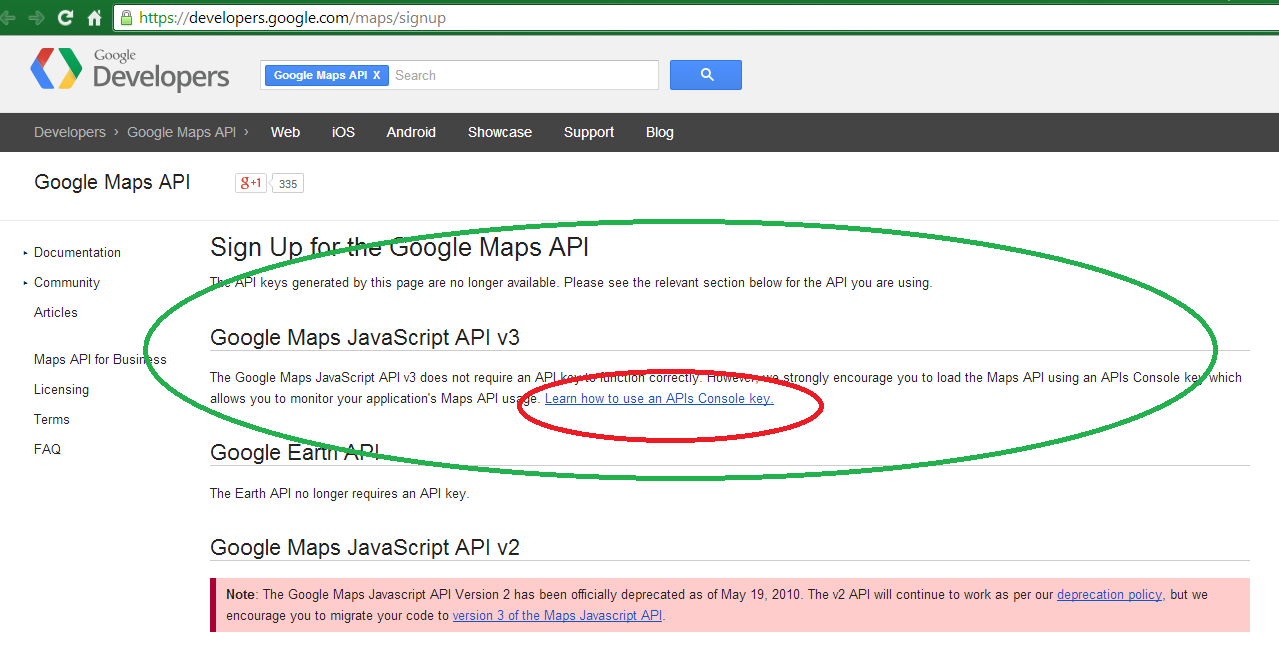
There you can click the link "Learn how to use an APIs console key":


Alternatively, you can directly enter the Google Maps API:


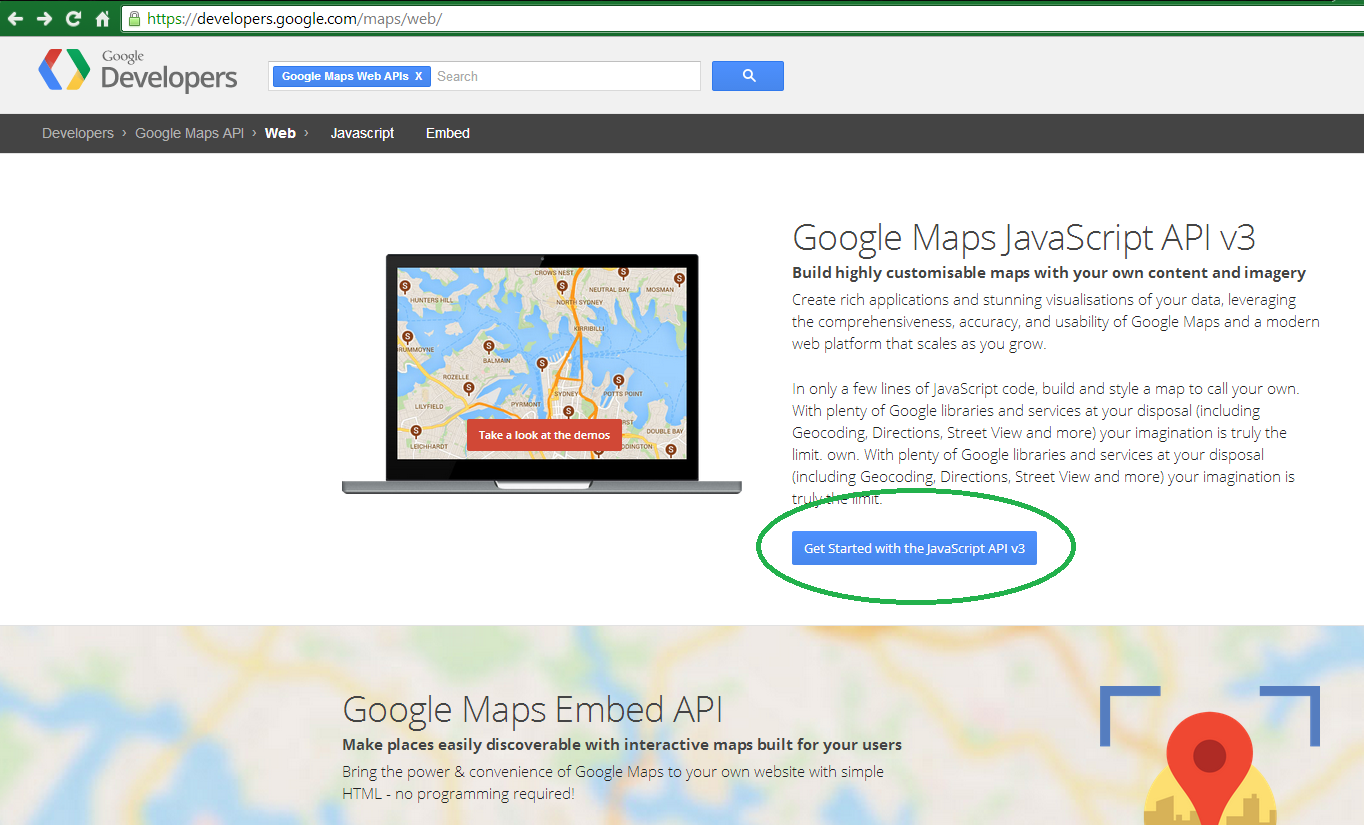
Selecting the "WEB" option, you get to the Web API:


Choose Javascript API v3, and then "Obtaining an API Key":


There you get a walktrough about obtaining the Key:


To see the differences between the FREE option to the COMERCIAL, take a look here:


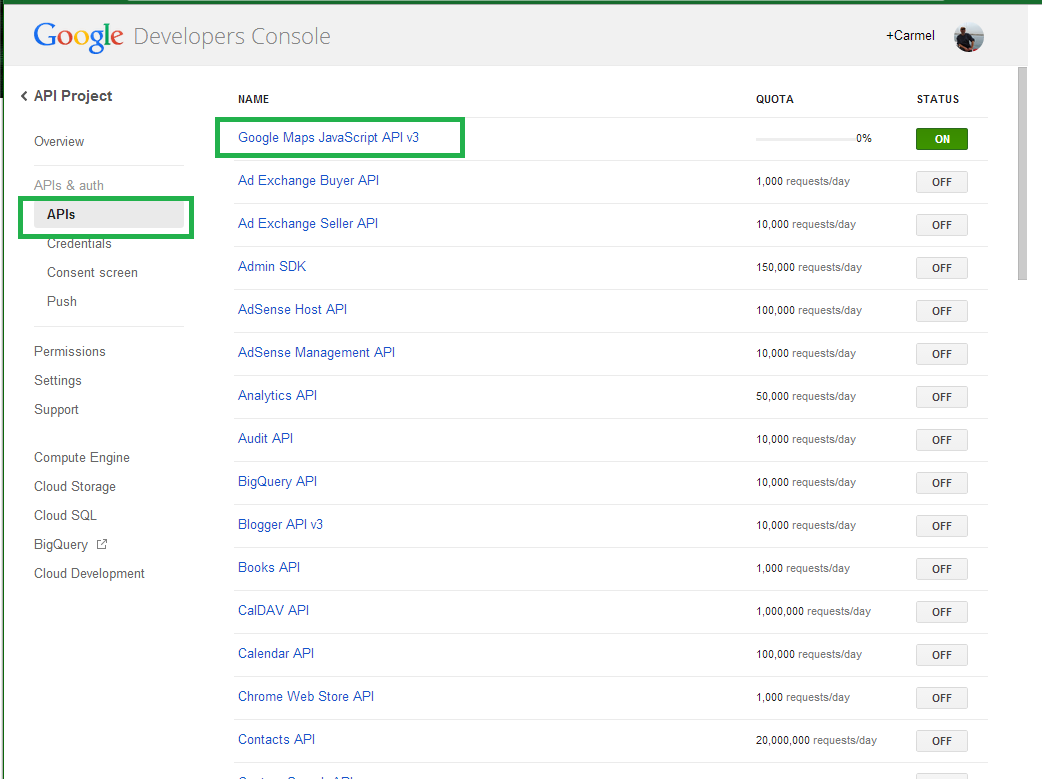
Whether if you browse to the new Developer's Console:


...and choose the "APIs" from the Menu, or you enter the old Console...


...and select the "Services" from the Menu, look for the API called "GOOGLE MAPS JAVASCRIPT API v3", and ENABLE it, to obtain your Key:


After you log in with your Google ID, you get a Public API Access Key:


Save the API Key to a safe place. Now you have your Developer's Key.

We're ready to create an HTML file to use the Google Maps API. First add the DOCTYPE directive and the CSS we'll be using:

<!DOCTYPE html>
<html>
  <head>
    <title>Asynchronous Google Map</title>
    <meta name="viewport" content="initial-scale=1.0, user-scalable=no">
    <meta charset="utf-8">
    <style>
      html { width:100%;height: 100%; }
      body { font:900 12px Georgia;color:#fff;background:#c67f1c;width:90%;height:90%;margin:5px 5px 5px 5px; }
      #map { width:70%;height: 97%; }
    </style>
Next, let's add the UI to get the coordinates from the user. I hard-coded some coordinates to get my own town in Argentina, Concepcion del Uruguay. You type want you like:

</head>
  <body>
     <div>
    Type the latitude : &nbsp; <input id="latitude" value="-32.484" /><br />
Type the longitude : <input id="longitude" value="-58.231" /><br />
        <input type="button" value="Asynchronously Load Google Map" onclick="fnLoadMap()"/>
</div>
    <div id="map"></div>
  </body>
</html>

Finally, we code the javascript function to load the Google Map when the user press the button. In order to do that, we'll take a look at the API Reference of the API version 3:


We'll load the Google Map calling the API function "Map", with a "MapOptions" argument, including the "center" property, which specifies the coordinates of the map:


...and including also the "zoom" we want to display the map:

, including also the javascript for the API, with the Developer Key that you got from Google(replace the "HERE_YOUR_DEV_KEY" with your personal Key):


<script>
function initialize() {
  var lat = document.getElementById("latitude").value;
  var long = document.getElementById("longitude").value;
  var mapOptions = {
    zoom: 15,
    center: new google.maps.LatLng(lat,long)  
  };
  var map = new google.maps.Map(document.getElementById('map'),
      mapOptions);
  document.getElementById("map").innerHTML = map;
}
function fnLoadMap() {
  var script = document.createElement('script');
  script.type = 'text/javascript';
  script.src = 'https://maps.googleapis.com/maps/api/js?key=HERE_YOUR_DEV_KEY&sensor=true&' +
      'callback=initialize';
  document.body.appendChild(script);
}

</script>

The final code of the function will be as the following:


function fnLoadMap() {

var lat = document.getElementById("latitude").value;
        var long = document.getElementById("longitude").value;
        var mapOptions = {

          center: new google.maps.LatLng(lat,long),
          zoom: 15
        };
        var map = new google.maps.Map(document.getElementById("map"),
            mapOptions);
document.getElementById("map").innerHTML = map;
      }

The HTML file should look as follows:


Open the HTML in some browser, to see this UI:


Change the coordinates and press the button:


That's all!! 


In this tutorial we've learned how to make Asynchronous calls to the Google Maps API in MVC 4. We built an application which loads a Google Map according to the user's input coordinates.   

Happy programming.....

כתב: כרמל שוורצמן

Friday, April 18, 2014

Step By Step How to use the Google Maps API in MVC 4 in 15 minutes

        By Carmel Schvartzman

In this tutorial we'll learn how to use the Google Maps API in MVC 4 in 15 minutes. We'll build an application which loads a Google Map according to the user's input coordinates. 
In order to do that, you must have a Google Maps Developer Key. I'll lead you through the process of getting that Key from Google's Developer Center.
The Google Maps API application must load the Maps API using an API developer key. Using an API key enables the developer to test the application's Maps API.
The Key is free of charge, but it limits you to 25,000 requests per day, and also you're not allowed to use the Developer Key on any comercial purposes.

We'll want to create a Google Maps API in MVC 4 , showing as follows:


To get your personal Developer Key, search "google maps API key":


You'll browse to the developers.google.com site:


There you can click the link "Learn how to use an APIs console key":


Alternatively, you can directly enter the Google Maps API:


Selecting the "WEB" option, you get to the Web API:


Choose Javascript API v3, and then "Obtaining an API Key":


There you get a walktrough about obtaining the Key:


To see the differences between the FREE option to the COMERCIAL, take a look here:


Whether if you browse to the new Developer's Console:


...and choose the "APIs" from the Menu, or you enter the old Console...


...and select the "Services" from the Menu, look for the API called "GOOGLE MAPS JAVASCRIPT API v3", and ENABLE it, to obtain your Key:


After you log in with your Google ID, you get a Public API Access Key:


Save the API Key to a safe place. Now you have your Developer's Key.

We're ready to create an HTML file to use the Google Maps API. First add the DOCTYPE directive and the CSS we'll be using, including also the javascript for the API, with the Developer Key that you got from Google:

<!DOCTYPE html>
<html>
  <head>
    <meta name="viewport" content="initial-scale=1.0, user-scalable=no" />
    <style type="text/css">
      html { width:100%;height: 100%; }
      body { font:900 12px Georgia;color:#fff;background:#c67f1c;width:90%;height:90%;margin:5px 5px 5px 5px; }
      #map { width:70%;height: 97%; }
    </style>
    <script type="text/javascript"
      src="https://maps.googleapis.com/maps/api/js?key=HERE_TYPE_YOUR_KEY&sensor=true">
    </script>
Next, let's add the UI to get the coordinates from the user. I hard-coded some coordinates to get my own town in Argentina, Concepcion del Uruguay. You type want you like:

 </head>
  <body>
    <div>
   Type the latitude : &nbsp; <input id="latitude" value="-32.484" /><br />
Type the longitude : <input id="longitude" value="-58.231" /><br />
        <input type="button" value="Load Google Map" onclick="fnLoadMap()"/>
</div>
    <div id="map"/>
  </body>
</html>

Finally, we code the javascript function to load the Google Map when the user press the button. In order to do that, we'll take a look at the API Reference of the API version 3:


We'll load the Google Map calling the API function "Map", with a "MapOptions" argument, including the "center" property, which specifies the coordinates of the map:


...and including also the "zoom" we want to display the map:


The final code of the function will be as the following:


function fnLoadMap() {
 
var lat = document.getElementById("latitude").value;
        var long = document.getElementById("longitude").value;
        var mapOptions = {

          center: new google.maps.LatLng(lat,long),
          zoom: 15
        };
        var map = new google.maps.Map(document.getElementById("map"),
            mapOptions);
document.getElementById("map").innerHTML = map;
      }

The HTML file should look as follows:


Open the HTML in some browser, to see this UI:


Change the coordinates and press the button:


That's all!! 


In this tutorial we've learned how to use the Google Maps API in MVC 4 in 15 minutes. We built an application which loads a Google Map according to the user's input coordinates.   

Happy programming.....

כתב: כרמל שוורצמן