Showing posts with label ViewResult. Show all posts

Friday, July 11, 2014

Step by step how to send all ActionResult response types in MVC 4

        By Carmel Schvartzman


In this tutorial we'll learn how to send all Action Result types in MVC 4. We'll create all types of ActionResult types in an application in Asp.Net MVC, with support for JsonResult, FileResult, RedirectResult, redirectToActionResult, EmptyResult, ContentResult, ViewResult and PartialViewResult. All of this classes inherit from the base ActionResult.

The data for this application will be an XML file, which will be displayed in a View as follows :


The documentation for the different types of ActionResult class is exposed at this MSDN web page :


We'll be rendering ALL TYPES OF ActionResult , but first let's create a new Controller, i'll call it "Blog" :


Then add a View for the "Index" Action:


Viewing this way :


Then add a new item to the Menu, for us to browse to our Controller more easily:


The Content ActionResult :


The first ActionResult will practice is the ContentResult :

 Let's render just a string :
The browser shows the rendered string:


Now let's render an entire XML file :


And the browser shows the rendered XML data:


The XML is the following, if you want to copy-paste it :
<?xml version="1.0" encoding="utf-8" ?>
<notes>
  <note>
    <to>Fry</to>
    <from>Leela</from>
    <heading>Reminder</heading>
    <body>Don't forget me this weekend!</body>
  </note>
  <note>
    <to>Leela</to>
    <from>Fry</from>
    <heading>Finally!!!</heading>
    <body>Leela, finally you accept to have a date with me!</body>
  </note>
  <note>
    <to>Fry</to>
    <from>Leela</from>
    <heading>Rejection</heading>
    <body>In second thoughts, i'll get out with someone else...</body>
  </note>
</notes>

The File ActionResult :

Now let's render a file :
 We'll render the same XML file as before:
 The browser shows the rendered XML:


The Redirect ActionResult :

Now let's try to REDIRECT to some web page:


We redirect the browser to my blog:


The Json ActionResult :


Now let's render JSON data:
 The browser shows the rendered JSON object:


The RedirectToAction ActionResult :


In case you need to redirect to ANOTHER ACTION method, use the RedirectToActionResult :

 The second Action method just renders the string it got from the browser.
The browser shows the redirected page, and the Action method gets and renders a "shout" argument::


But, if you wanted to use the MVC mapping for parameters (  /Blog/Echo/YourInput ), it won't work:


 That is because at the routing there is a default for requests, which states that  the parameter is called "type" and not "shout". We have to modify that behavior and set that any request send to /Blog/Echo will get an OPTIONAL "shout" argument, as follows :


Now the argument is correctly mapped:


The PartialView ActionResult :

Now let's render a PartialView, with an XML XDocument as the Model :


Add a new PartialView to the Index Action, in  addition to the View we added before:


Remark the PartialView with an "_" to remind us this is partial.
To loop through all XML nodes, we use the C# properties Descendants( "" ) and to  reach the values we use Descendants( "" ).First().Value :


And the browser displays the PartialView with the data from the XML :

 I added some CSS3 transitions and transformations to make it more responsive (see this post to deep on CSS3 transformations ) :

<style>
 
.container
{  width:20%;  background:#ffd800;  margin:20px auto;  padding:30px;  border:1px solid #eaeaea;  border-radius:10px;  box-shadow:10px 10px 1px #baa21d;  transition:all 3s ease-out 0.5s;  text-align:center; } 
.list:hover {  -webkit-transform:rotate(-1deg) scale(1.1,1.1);
}</style>


The complete example for ActionResults :

Finally, we gather together all ActionResults and render each one depending on the argument selector. First set the routing to allow the user to enter a type :


Then type all ActionResults types and switch on the actiontype parameter :


Take a look at the JSON part : we cast the XML data inside a generic List<>, to avoid an exception when the JavaScriptSerializer called by the Json object will try to serialize and found a supposed cyclic reference inside the XML :


The browser shows the XML cast as JSON :


That's all!!  In this tutorial we've learned how to send all Action Result types in MVC 4.
Happy programming.....

כתב: כרמל שוורצמן


Tuesday, January 21, 2014

Step By Step How to use the TextBox HTML Helper in an MVC 4 View

        By Carmel Schvartzman

In this tutorial we'll learn how to use the most common HTML Helper, the TextBox control, in an MVC View in ASP.NET MVC 4. An MVC View is the responsible for rendering the html for the UI with the user: it is the Presentation level in the ModelViewController software pattern; if so , it is absolutely forbidden to include in it any bussiness logic (wich is holded into the MVC Model) or any application logic (coded inside the MVC Controllers), nor any data fetching(MVC Model responsability, sent via the Controllers).

By convention, the Views are stored inside subfolders of the View folder, named after the corresponding Controllers: then for instance, all the Views you create related to the AccountController will be placed inside the "Account" folder ("Views/Account"). The MVC framework will search a required View to be rendered, in the folder with the name of the Controller, and if it is not there, will search at the "Shared" subfolder. If you want a View to be shared among several Controllers, place it in the "Shared" folder.

A View is just a class called ViewPage: it inherits from the Page class and also implements the IViewDataContainer, in order to hold all the data sent by the Controllers inside its ViewDataDictionary.
We can also send data to the View using the ViewBag dynamic dictionary, which internally uses the ViewData dictionary to store the key/value pairs, and it is an advantage because in the ViewBag case we don't need to cast the values. There is of course the disadvantage of ViewBag being late binded and therefore we don't have compile time checking but runtime errors instead. There is another useful collection named TempDataDictionary, similar to the former, with the difference that it persists ONLY between the current request and the next request (unless you mark the key to be persisted more than that, using the Keep() method). This is useful while passing data between Action methods, or in case of errors.

In this tutorial we'll learn how to use the most common HTML Helper, the TextBox control, in an MVC View in ASP.NET MVC 4, getting the following UI results:


To use the HTML Helpers we must create our own View, so first let's create a new Controller called "NewViewController", and then add a View to the Index Action method. So right click over the Controllers folder, and add a new Controller:


Name it "NewViewController", and select the template "Empty MVC Controller":


Open the Controller file and find the "Index" Action method:


Right click on it and select the option "Add View":


On the dialog, let the name be "Index", select the "ASPX" View engine, and choose a master page:

The first HTML Helpers we'll learn about are the TextBox control and the Label. For the other HTML Helpers, refer to the "Categories" Menu in the top-right place in this Blog. Open the View we just created, and type the TempData["message"] in order to display a message:


Create the Form object taking care of its tags:


Also, add a button in order to submit the form:


Now, add the label which will inform the user what is the text box about. We'll send the title text from the Action method on the server side:


Next, type the following code to display a TextBox:


The first argument the TextBox Helper gets is the name of the control: this name is the one which will identify it when the request is sent to the web server. The second argument is the text that the TextBox will display before the user types something in it. Setting it as "null" forces the MVC framework to search inside the ViewDataDictionary for some key named as the control: this way we'll send the text from the Action method on the server side. The last argument is an annonimous object which contains the style of the control.

Now let's set the Action method linked to this View. Go to the "NewView" Controller and search for the Index Action method, adding to the ViewDataDictionary the values to populate the title and the textbox control:


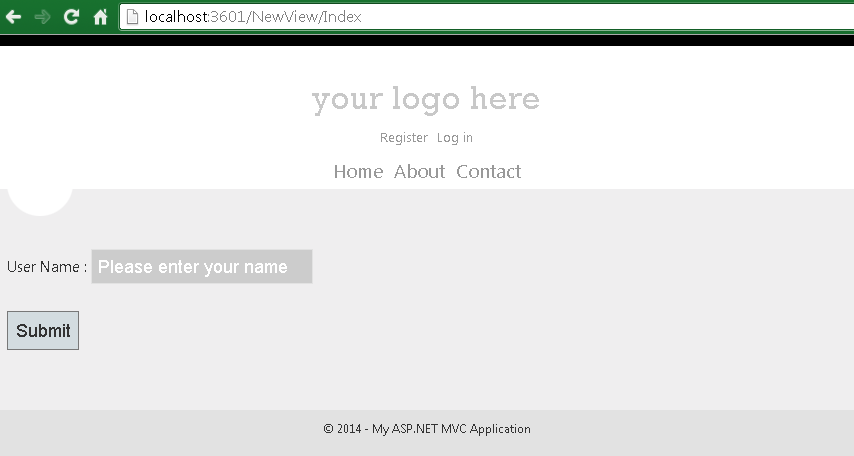
Now build the application and run without debugging:


As you can see, we get the title and the textbox. Open the Developer's Tools ( F12 ) and refresh the web page:


You can see in the "Network" tab, that an HTTP GET request has been sent to the web server.
Enter your name, and press the submit button:


This time, an HTTP POST request has been sent by the Form. Therefore we'll handle the request by creating an Action method which processes it and uses the same View. To handle the request, add the GetVerb and the ActionName Attributes with the following arguments:


We're just instructing the MVC framework that this is the Action method that handles POST requests, and gets the input data in the "txtUserName" textbox. Notice that the name of the parameter MUST BE EXACTLY the same of the TextBox control in order to get the data. Now we'll render a message to the client side using the input data received from the browser:


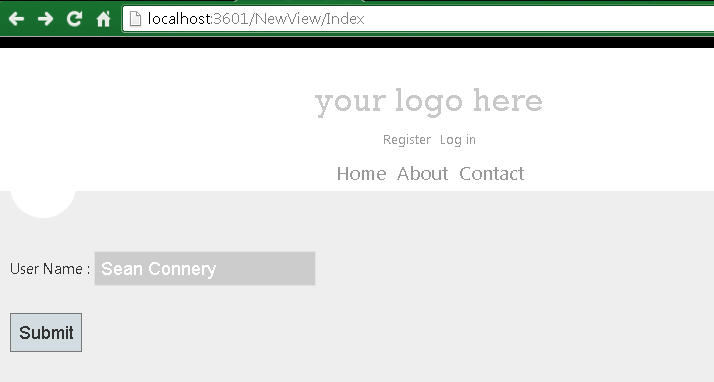
Rebuild the application, go to the browser , and type your name:


We get the message telling the user that everything went OK:


In this tutorial we've learned how to use the most common HTML Helper, the TextBox control, in an MVC View in ASP.NET MVC 4, sending to it data via the ViewDataDictionary, and the TempDataDictionary. 
That's all!! 
Happy programming.....


כתב: כרמל שוורצמן