Showing posts with label MVC Controller. Show all posts

Monday, April 7, 2014

Step By Step How to create an outstanding MVC site using CSS Templates in 10 minutes

        By Carmel Schvartzman

In this tutorial we'll learn how to create an outstanding MVC site using CSS Templates in 10 minutes. Building an MVC website requires you to design far beyond the simple standard style provided by default by the Visual Studio environment. The task of writing CSS code for your own layout, can be a tedious work if you're not a web designer. CSS templates take care of this by providing you with a nicelly designed layout, which you can use to build your website.
Until some years ago, web page's layouts were put together using the HTML <TABLE> tag, which was originally meant for holding tabulated data more than for showing parts of a page. Nowadays there is a lead to using strictly CSS for their layouts instead, by means of the <div> tag essentially.
We'll be using CSS TEMPLATES to help us to build well designed web sites quickly. We can find on the web many CSS templates released for FREE, very lightweight and fast loading, tables-free and W3C standards compliant, also provided with public domain photos.
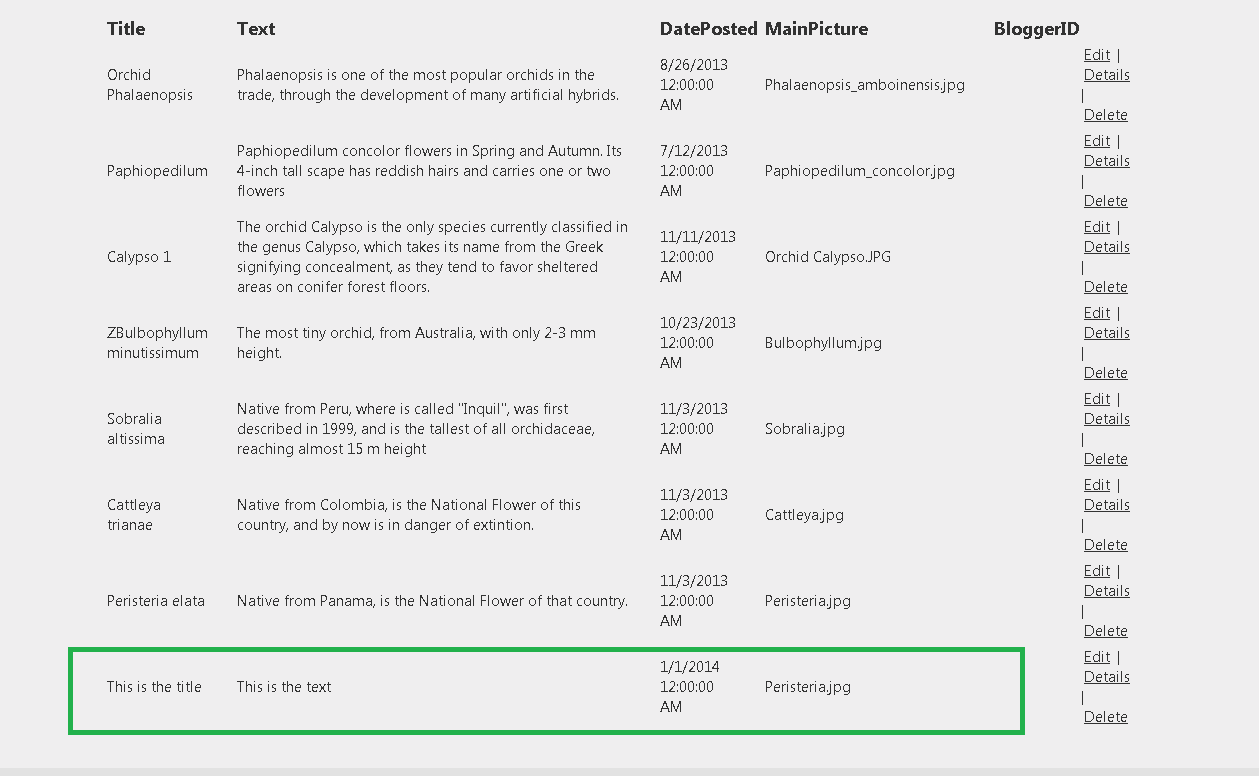
We'll want to create  an outstanding MVC site using CSS Templates , showing as follows:


First let's find some CSS templates on the web for FREE: make a search for "CSS FREE TEMPLATES". Right now the most used is the site from WIX on www.freecsstemplates.org :


Choose some template you like. I'll select the "earthlingtwo" template and download it:


Open the ZIP file :


Copy-paste the whole theme into the "Content" folder of the MVC application:


Now open the HTML file:


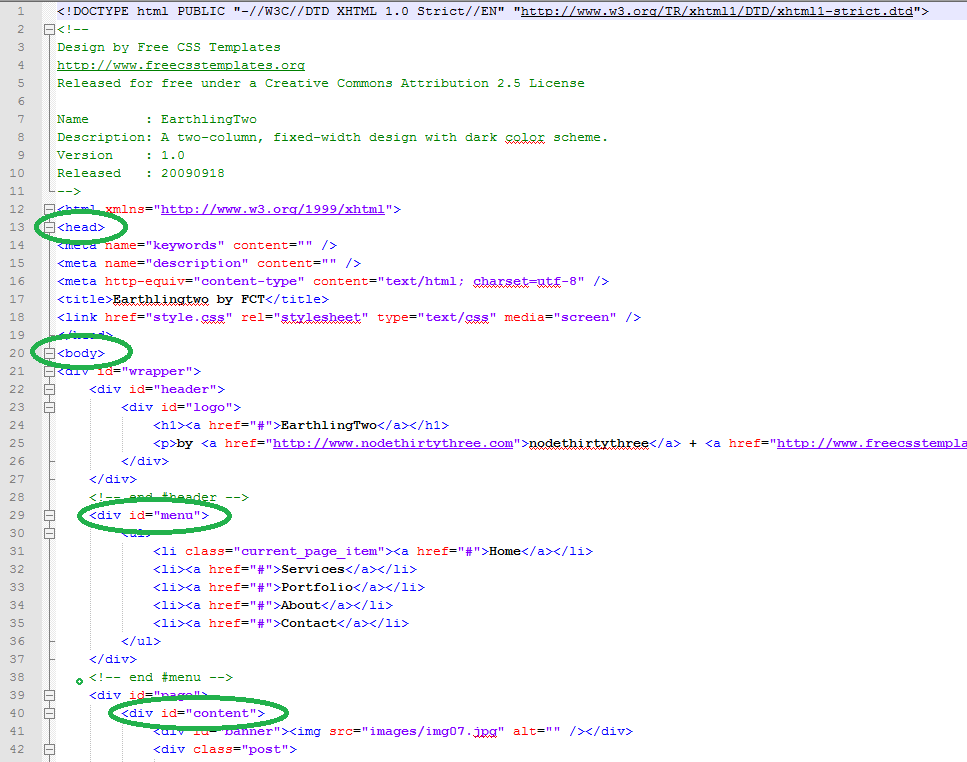
There are some very important tags that you must take into account to customize your site: <head> and <body>, and the <div>s "menu" and "content":

We're going to replace the standard HTML inside the template, with the layout from the MVC    "_Layout" file:


Open the _Layout file and see the markup we're going to embed inside the template:


Let's start by copying the _Layout <head> contents:
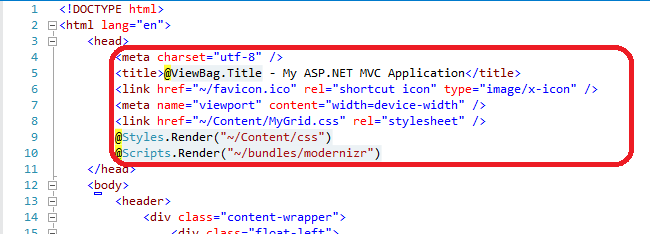

And PASTE them inside the CSS HTML template:


Also, fix the link to target to the CSS "Style" file inside the Content folder:


Now COPY the <header> markup from _Layout :


To the "header" <div> inside the template:


And replace the "menu" from the template:


...with the "menu" from the _Layout file:


The template's "header" will resume as follows, after the changes:


Next, COPY the "body" <div> from the MVC _Layout file...:


...replacing the whole "content" <div> inside the CSS template:


The final results should be:


Next, delete the entire "sidebar", because we don't need it:


Finally, COPY the <footer> tag from the _Layout:


...replacing the "footer" <div> inside the CSS template:


Resulting in the following:


Take care of copying the "scripts" section , to allow the MVC displaying properly.
The results should be approximately the following web design, after building the MVC application:


That's all!! 
In this tutorial we've learn how to create an outstanding MVC site using CSS Templates in 10 minutes.  

Happy programming.....


כתב: כרמל שוורצמן


Wednesday, January 8, 2014

Step By Step How to create an Action Method to Create a New Item

        By Carmel Schvartzman


In this tutorial we'll learn how to code an Action Method to create a new item and persist it to an SQL SERVER database in ASP.NET MVC 4, in order to enable support to all CRUD (Create Retrieve Update Delete) operations in our application.
An Action method is a public method in a Controller, called in response to an user interaction. When a user send a request to an MVC app, the MVC framework find the appropriate Controller routing the request to it, and calling an Action method. This Action method returns an ActionResult object, which can be one of the following:
1. ViewResult : renders an MVC View
2. PartialViewResult : renders a section of a View
3. FileResult : returns binary data in the response
4. JsonResult : returns serialized Json object
5. JavaScriptResult : returns a script to be executed in the user browser
6. RedirectResult : redirects to another Action by URL
7. RedirectToRouteResult : redirects to another Action

There is also an EmptyResult, to return null.
Every public method in a Controller is suposed to be an Action. We can place private methods in a Controller, and if we need a public method that is not an Action, it must be decorated by an NonActionAttribute, which is translated by MVC to an 404 error (Page Not Found).

An Action method can handle different HTTP Verbs by using the AcceptVerbsAttribute, or the following more specific attributes:
1. HttpGetAttribute (for retrieving data)
2. HttpPostAttribute (for creating new entries)
3. HttpPutAttribute (for updating data)
4. HttpDeleteAttribute (for deleting)

When an Action method returns a View, we can pass data to the View using the ViewDataDictionary collection, this way:
                ViewData["Some Key"] = "Some Value";

Also , the View object supports getting any strongly-typed object as an argument:
                return View(someObject);

In the case an Action must pass data to another Action, this data is stored in a Session collection named TempDataDictionary:
               TempData["SomeKey"] = someObject;

This is useful while redirecting to another Action, or when sending a message to another Action in case of errors.


We'll add an Action Method to add a new item to a database table  in ASP.NET MVC 4 , resulting in the following Create View :


Let's say we have an MVC app connected to a database with an Entity Framework data model. First we'll create a DataRepository which supports retrieve and create actions. Create a new class BlogRepository:


In the new class, create a property with only the "get" access modifier to worry for creating the Data Model context:


Create a "Save" method to persist the data to the store:


And create an "Create" method to add a new post:


The code will also remove the collection from the Cache, because the cache data is now obsolete:


Now we're ready to create our Controller and its Action methods. Add a new Controller named "BlogController":


The template to be used will be "MVC Controller with empty read/write actions":


Open the new Controller and find the "Create" Action:


Now let's add a View to render the list:


Choose creating a strongly-typed View, with the Blog Model:


The Scaffold Template must be "Create" in this case:


The "Create" View inside the "Blog" folder has been automatically created:


In order to add a new link to the Menu, open the _Layout.cshtml file and add the following entry:


Actually, we don't need to add it, because we can also click the prebuilt "Create New" link:


Open the new Controller and find the "Create" Action, with "HttpPost" attribute decorating it:


Write the following code to create a new post using the Repository:


Notice that we're calling Save() after creating the new post. Also notice that we replaced the parameter type of the method, to a "Blog" type, which is received from the browser through an POST request.

Now let's see how our Action method works. Debug the project (F5), and browse to the "Create" page :


We get the "Create" View, to input the new Blog post:


Enter some input into the form, and press Save:


Now let's check the database. Indeed, the post has been persisted:


And also it is reflected in the "Index" View, because the Cache has been refreshed:


In this tutorial we have learned how to create an Action Method to add a new item to a database table  in ASP.NET , MVC 4, using a Repository with caching support.

That's all!! 
Happy programming.....


כתב: כרמל שוורצמן

Monday, January 6, 2014

Step By Step How to create a Custom Action Filter in ASP.NET MVC 4

         By Carmel Schvartzman


In this tutorial we'll learn how to create a Custom Action Filter  in ASP.NET MVC 4. A custom Action Filter is a class which inherits from the ActionFilterAttribute class, and overrides the OnActionExecuting method (if we want the custom  Action Filter execute before the Action method) or the OnActionExecuted method  (if we want the custom  Action Filter execute after the Action method).


An Action Filter is an attribute applied to an Action method or to a Controller in order to modify its execution. If it decorates a Controller, it applies to every Action method on the Controller.

An Action Filter performs pre-action and post-action processing, in each one of the following areas:

   1) Exceptions: copes with an unhandled exception thrown inside an Action method (or the whole        Controller) using for example the HandleErrorAttribute.

   2) Actions: performing additional processing, such as checking the return value, logging, anti-image leeching, or cancelling execution, or even calling another Action methods (Dynamic Actions).

   3) Authorizations: performing authentication of the requests, using for example the AuthorizeAttribute.

   4) Results: wrapping the execution of the ActionResult , using for example the OutputCacheAttribute.

Because an Action or Controller can have several Action Filters, these have an "Order" property, to specify in which order the Filters must be executed. The first priority order is -1, and each greater integer number means a lower priority. If not specified, the order number remains -1.

We can create our own custom Action filter by inheriting from the ActionFilterAttribute class, an abstract class containing 4 virtual methods for overriding: OnResultExecuting , OnActionExecuting, OnResultExecuted, OnActionExecuted. These methods are called by the MVC engine
according to its name: before or after the method execution, and in the case of the OnResultExecuted/Executing, after or before the ActionResult is returned from the Action method.

The OnActionExecuting method gets an ActionExecutingContext which contains an "Cancel" property that can be used to cancel the Action being executed. The OnActionExecuted contains an Exception property that can be used to determine whether an  error has been thrown , and handle it.

In this Tutorial we'll create a custom Action Filter to perform logging before and after a specific Action method is called . Open Visual Studio and create a New Project, selecting ASP.NET MVC 4 Web Application:


In the next dialog, select the "Internet Application" template with "Razor" engine:


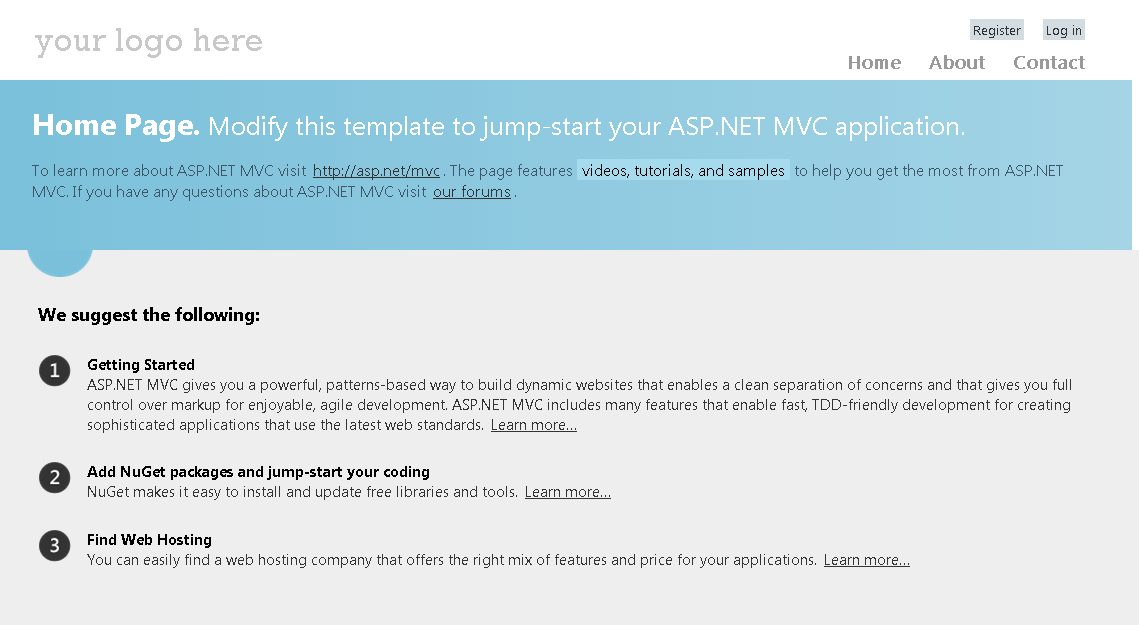
Press F5 to build and debug the app. We get the following web page:


Now for the creation of our custom Action Filter, add a class named "LogActionFilterAttribute", inheriting the ActionFilterAttribute class:


Type the inheritance settings of the class:


Now select which ActionFilterAttribute virtual method you want to override:


First method to override will be OnActionExecuting, in which we code the following expresions to write to the Trace log:


We use here the HttpContext within the received ActionExecutingContext, to write to the Tracing log, the name of the current Action method, and the date and timeץ

Next, we override the OnActionExecuted method:


We get the following bootstrap:


Now we'll use the ActionExecutedContext to log just as we did before:


Finally we decorate some Action method with our custom Action Filter, for example the "Contact" Action method:


Last but not least, we must modify the web.config file to enable tracing. Append to the system.web node the "trace" element with the following definitions:


Press F5 to build and debug the app:


And now go to the "Contact" web page:

The Contact web page is rendered:


To see the log trace, browse to the trace.axd :


In the entry corresponding to the Home/Contact page, click on View Details:


As you can see, the Action Filter has written the Messages in the trace.

To see the whole process in action, set some breakpoints and debug ( F5 ) your application:

OnActionExecuting is called before entering the Contact Action method. Next, the Contact Action method executes:


After executing the Action method, the OnActionExecuted is fired:


In this Tutorial we have applied a custom Action Filter to perform logging before and after execution of an action method.
That's all!! 
Happy programming.....


כתב: כרמל שוורצמן