Showing posts with label SQL Server. Show all posts

Tuesday, May 19, 2015

How to Loop through each record in a SSIS in-memory ADO Recordset Table

In this post we describe Step by step How to Loop through each record in a SSIS in-memory ADO Recordset Table  ,  in Sql Server Integration Services.
In this article we create from scratch a small SSIS application which uses the Foreach SSIS item for a loop through all records in a table.
Your table can be a SQL OLE DB table , an Excel , a raw file , an ADO NET table , an XML . The source of it does not matter, since we'll copy its rows inside an in-memory table , and loop over it.
For this example, we'll loop over all records from an OLE DB SQL Table, in order to send emails to all the "Contacts" in the table.
Our pilot SSIS application will show as the following:


How to Loop through each record in a SSIS in-memory ADO Recordset Table 


First , search in the Toolbox for the Data Flow Task item:

How to Loop through each record in a SSIS in-memory ADO Recordset Table 1

Open it for "Edit" , and add an OLE DB Source:


How to Loop through each record in a SSIS in-memory Table


In the "Edit" mode, set a Connection Manager , and add the following SQL Command:

Loop through each record in a SSIS in-memory ADO Recordset Table

As you can see, our command loads all ercords in the Contact table from Adventure Works:


through each record in a SSIS in-memory ADO Recordset Table


Next, add (this is optional) a Derived Column item , for editing the columns, if you need it.
For this example, we don't edit it. Just drop this item in the Data Flow.
Next, append a Recordset Destination item, in order to keep all fetched records in RAM memory.
Your Data Flow Task should now look as this:


How to Loop through each record in a SSIS in-memory ADO Recordset Table 2

At this point, the Recordset Destination will require an Object variable where to keep the records.
Therefore, create a new variable with "Package" scope as follows:


How to Loop through each record in a SSIS in-memory ADO Recordset Table 3


And then, set the  Recordset Destination's  "variable name" to this variable:

How to Loop through each record in a SSIS in-memory ADO Recordset Table 4

And now, select all the columns that you want to be included in the in-memory table:

How to Loop through each record in a SSIS in-memory ADO Recordset Table 5

Take a close look at the ORDER of this columns: this is going to be very important in the next steps.

Now, add a Foreach Loop Container, which will loop through the in-memory Table:


 SSIS in-memory ADO Recordset Table

In every loop iteration , the current record's data will be copied to the correspondent variables, which now we are going to create as follows:

 in-memory ADO Recordset Table

You must respect the types of the columns being copied: NVARCHAR goes to STRING, and so on.

Inside the  Foreach Loop Container, in "Edit" mode, set the Enumeratoor to  "Foreach ADO Enumerator" :


How to Loop through each record

And tell SSIS that you want to loop through the Object variable that you set before:


 SSIS in-memory ADO Recordset Table


Also select the "Rows in the first table" option.

Now, set the variable mappings EXACTLY IN THE ORDER that they were set inside the ADO in memory table:


How to Loop through each record in a Table

That means, the current record value for the column "ContactID" will be copied to the "iContactID" .integer variable, and so on


That's all!!!! 
Now you will use that loop for example to send emails to all the Contacts in the table, setting the required parameters with the values from the loop variables: 
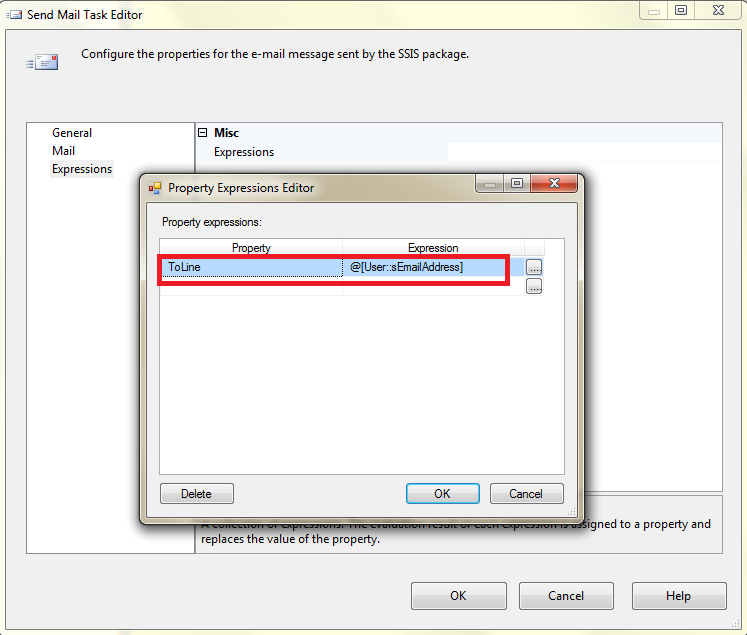

How to Loop through each record in a  in-memory  Table

Hoping this article was useful to you...


      by Carmel Schvartzman


כתב: כרמל שוורצמן

Monday, April 13, 2015

How to fix the SSIS error : "Parameter name is unrecognized."

In this post we describe Step by step How to fix the SSIS error : "Parameter name is unrecognized."   in Sql Server Integration Services .
We implement here in just 5 minutes the conventions introduced by Microsoft in the MSDN SQL Server 2014 documentation for SSIS : (applies also to SQL 2005-2008) For sampling this fixing we use the following SSIS application:

 How to fix the SSIS error :  Parameter name is unrecognized.


How to fix the SSIS error : "Parameter name is unrecognized."


In the snapshot above it can be seen that there is a runtime error at an "Execute SQL Task" :
 SSIS error :  Parameter name is unrecognized.


As it is sensible to do, we have defined an SQL parameter and named it "ComputerName". Why? Because the default when adding a new parameter is as follows:

Parameter name is unrecognized.

The default parameter name is "NewParameterName". Therefore, in our example , we have customized it to "ComputerName". And, consequently, we use it in our SQL query as "@ComputerName".
However , we receive the following error : "Parameter name is unrecognized." :


  fix  SSIS error :  Parameter name is unrecognized.


According to MSDN Documentation, while using SQL the parameters must be named as follows:


Therefore we must change our SQL query to complain to those directives, and use the "?" marker :

 How to fix the SSIS error :  Parameter name is unrecognized. 1


Now, the parameters must be mapped to the query, indexed on base "0" .
In our example, we have 4 "?" markers: therefore we add 4 parameters indexed from "0" to "3" :

SELECT  
CAST(
CASE
      WHEN ?  - ? <= 0  
         THEN 0
      WHEN ?  - ? > 0   
         THEN   1
     
      ELSE -1
      END
      
AS FLOAT
)

AS  RESULT

 How to fix the SSIS error :  Parameter name is unrecognized.   2


We hope this example will be useful to you.

Happy programming.....

      by Carmel Schvartzman


כתב: כרמל שוורצמן

Wednesday, November 26, 2014

How to use ExecuteStoreQuery with parameters on the Entity Framework


This tutorial is an example of  How to use the ExecuteStoreQuery method with parameters on the  Entity Framework, thus directly executing SQL commands against the Model Data Source.
We'll use a stored procedure that takes in a string parameter and returns some records, which we'll store inside a generic List<>. Using SQL commands or stored procedures is an effective way to retrieve only the records that you need, instead of fetching ALL the table data, to apply on it some kind of filtering using Where() or Single() methods, with all the performance costs that this later imply.

We'll exemplify running commands against the database on two ways:
1) using Stored Procedures
2) using an SQL command


 How to use ExecuteStoreQuery with parameters on the Entity Framework


1) For our first example, we create a stored procedure which takes a parameter and return three records using the received argument:

How to use ExecuteStoreQuery with parameters on the Entity Framework


Next, we define an SqlParameter for sending some text to the procedure:
How to use ExecuteStoreQuery with parameters on the Entity Framework 1

 SqlParameter p_code = new SqlParameter("code", "TEST");
            List<string> resultComplaintStateCode =
                                (from c in  Context
                                     .ExecuteStoreQuery<string>("GetText @code" ,p_code
                                 )
                                 select c).ToList();


 Notice that we use Linq to insert the returned records inside a generic List<> :

How to use ExecuteStoreQuery with parameters on the Entity Framework 2


Is really straightforward. However, if you use ExecuteMethodCall() method instead of ExecuteStoreQuery(), you'll need to update the Entity Framework Data Model, importing the stored procedure:
How to use ExecuteStoreQuery with parameters on the Entity Framework 3


How to use ExecuteStoreQuery with parameters on the Entity Framework 4


2) As the ExecuteStoreQuery method's name implies, we can also use it to execute some SQL command against the database.
For instance, let's copy the same SQL code from the stored procedure, and execute it directly from the C# code:
How to use ExecuteStoreQuery with parameters on the Entity Framework 5


 As you see, the SQL command was executed according to the three parameters that we sent :

How to use ExecuteStoreQuery with parameters on the Entity Framework 6


That's all!!!!


By Carmel Shvartzman

עריכה: כרמל שוורצמן

Monday, June 23, 2014

How to Deploy an ASP.NET MVC 4 Application to a FREE Web Host

        By Carmel Shvartzman
In this tutorial we'll learn Step By Step how to Deploy an ASP.NET MVC 4 Application on a FREE Web Hosting
We'll deploy the following Asp.Net MVC Application to the FREE HOSTING Somee.com host:

How to Deploy an ASP.NET MVC 4 Application to a FREE Web Host


How to Deploy an ASP.NET MVC 4 Application to a FREE Web Host


Browse to Somee.com :


Select the FREE Hosting Package :
Deploy an ASP.NET MVC 4 Application to a FREE Web Host

You register and set the LOGIN info :


Continue to get a Free Hosting Package :
Type the SUBDOMAIN of your Web Site :

And CREATE the site :

Now go to the File Manager, to UPLOAD your MVC site :

Open your file system where your MVC project is stored, and ZIP the entire MVC Web Site :

Then click "Upload & UnZip" :

After a while, you'll see the MVC files at the host :

Now we must set the DATABASE. Create a LOGIN :

Create a DATABASE :


Take a look at the Database's settings :


Now, we'll need to CUT & PASTE the entire web site to the UP folder :


Now, you can browse to your web site. Of course, it will be an error, because the database connection at the web.config file is still pointing at your machine's sql server :


So let's change the connection string :


Where's the new connection string? At the SQL database properties view :


COPY the connection string, and open the web.config file :


There, find the "Provider Connection String" key :


And PASTE the new connection BETWEEN the " &quot; " :

That's not all. We'll keep getting an error because the database is empty. So let's create the tables using the automatically created sql SCRIPTS from the SQL Server Manager  :


First, copy ONLY THE TABLES , and after that, copy the FOREIGN KEYS alter scripts :


Go to "New SQL Query" :


And PASTE the scripts , ONE BY ONE (the alternative is, of course, running a batch file):

After you created all the tables, run ONE BY ONE the KEYS scripts .
Finally, let's see how to update a single file at the site .
Just DOWNLOAD the file, clicking the download icon at the right, edit the file, and UPLOAD it again, taking care that the "Overwrite existing files" option is on:


And that's all. Enter some data, and browse to your site:


That's all!! 
In this tutorial we've learned how to Deploy an ASP.NET MVC 4 Application on a FREE Web Host.  

Happy programming.....


כתב: כרמל שוורצמן